Search and collections
Search photos across every gallery
Photo Browser
Find, filter, and download photos across all your galleries, search by person, event, date, or team.
Sidebar: People & Galleries
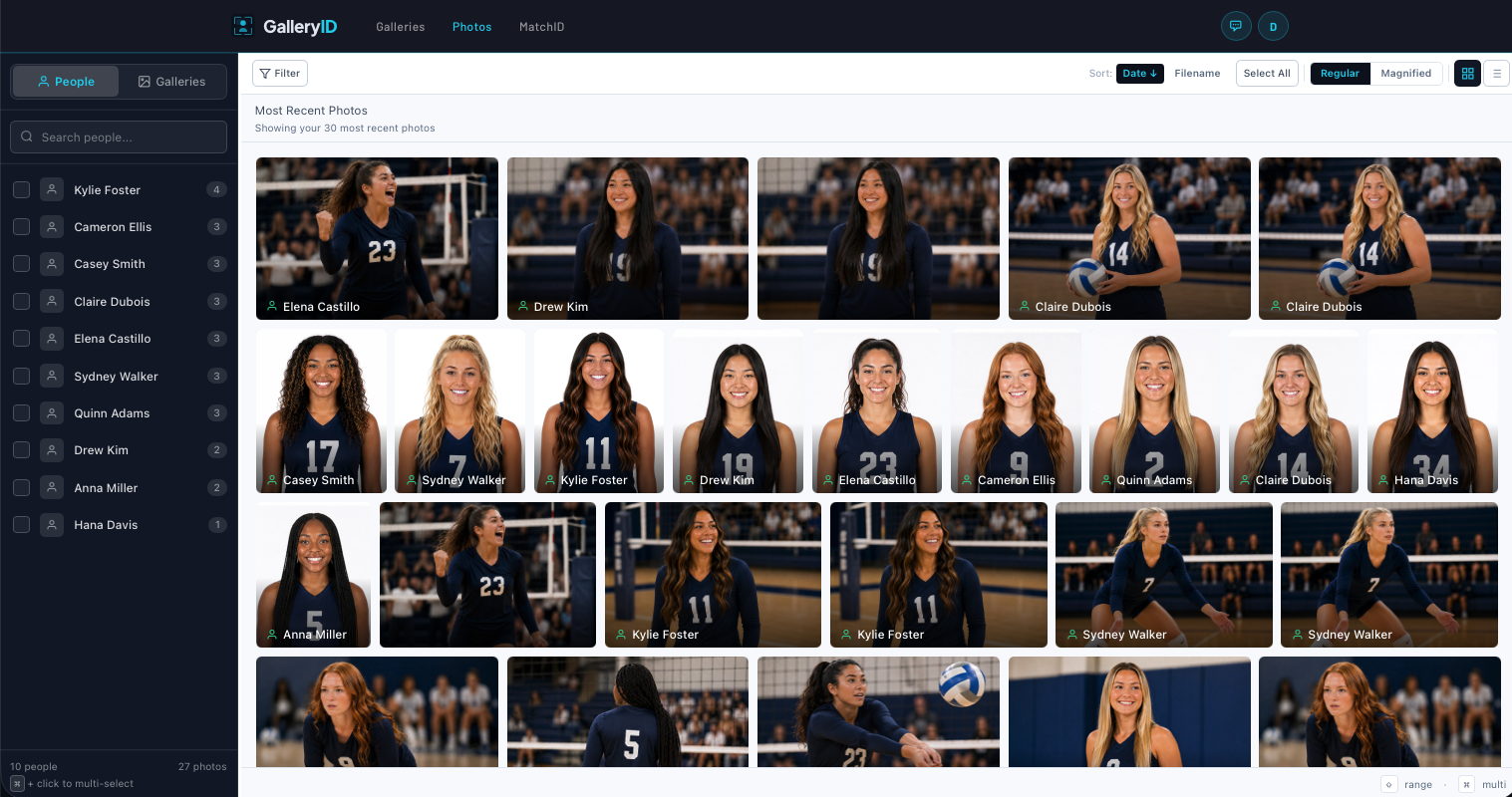
The left sidebar has two modes, People and Galleries. Switch between them using the toggle at the top of the sidebar.
People Mode
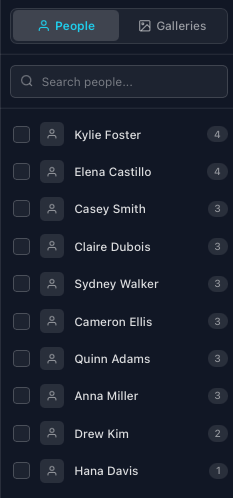
Lists each recognized person across your galleries, sorted by photo count. Click a name to see all their photos. Use Cmd / Ctrl + click to select multiple people at once, or Shift + click to select a range.
Galleries Mode
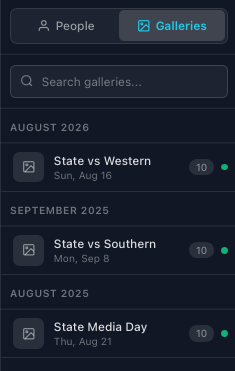
Lists all galleries you have access to, grouped by month. Each entry shows the gallery title, event date, sport, photo count, and a status dot (green = published, amber = processing, gray = draft). Click a gallery to load its photos.
Use the search field at the top to filter galleries by name, sport, or location.
Resizing the Sidebar
On desktop, drag the thin vertical handle between the sidebar and the photo grid to resize the sidebar (200–400 px). On mobile, the sidebar is hidden by default , tap the menu icon in the toolbar to slide it open.
Filtering & Search
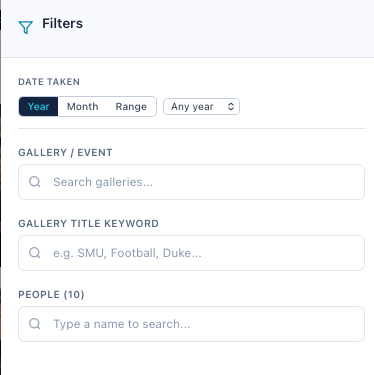
Click Filter in the toolbar to open the filter panel on the right. Combine any of the filters below to narrow your results. Active filters appear as colored pills below the toolbar, click the × on any pill to remove it.
| Filter | What It Does |
|---|---|
| People | Click person chips to filter by one or more recognized names. |
| Gallery / Event | Search and select a specific gallery. |
| Team / Opponent | Free-text search across gallery titles and event team fields. |
| Date (specific) | Show photos from one exact event date. |
| Date (range) | Set a From and To date to cover a time window. |
Clearing Filters
Click Clear in the toolbar to remove all active filters at once, or click the × on individual filter pills. You can also click Clear All Filters at the bottom of the filter panel.
Viewing Photos
Grid & List Views


Use the view-mode buttons on the right side of the toolbar to switch between Grid and List view.
| View | Description |
|---|---|
| Grid (Regular) | Photos arranged in a justified 3-column layout. Thumbnails resize to fill each row. |
| Grid (Magnified) | Fewer columns, larger thumbnails, useful for reviewing faces and detail. |
| List | One photo per row with filename, people, face count, file size, and date. |
In grid view, each photo card shows recognized names at the bottom of the thumbnail. Hover to reveal the filename, a download button, and a preview button.
Lightbox (Full-Screen Preview)
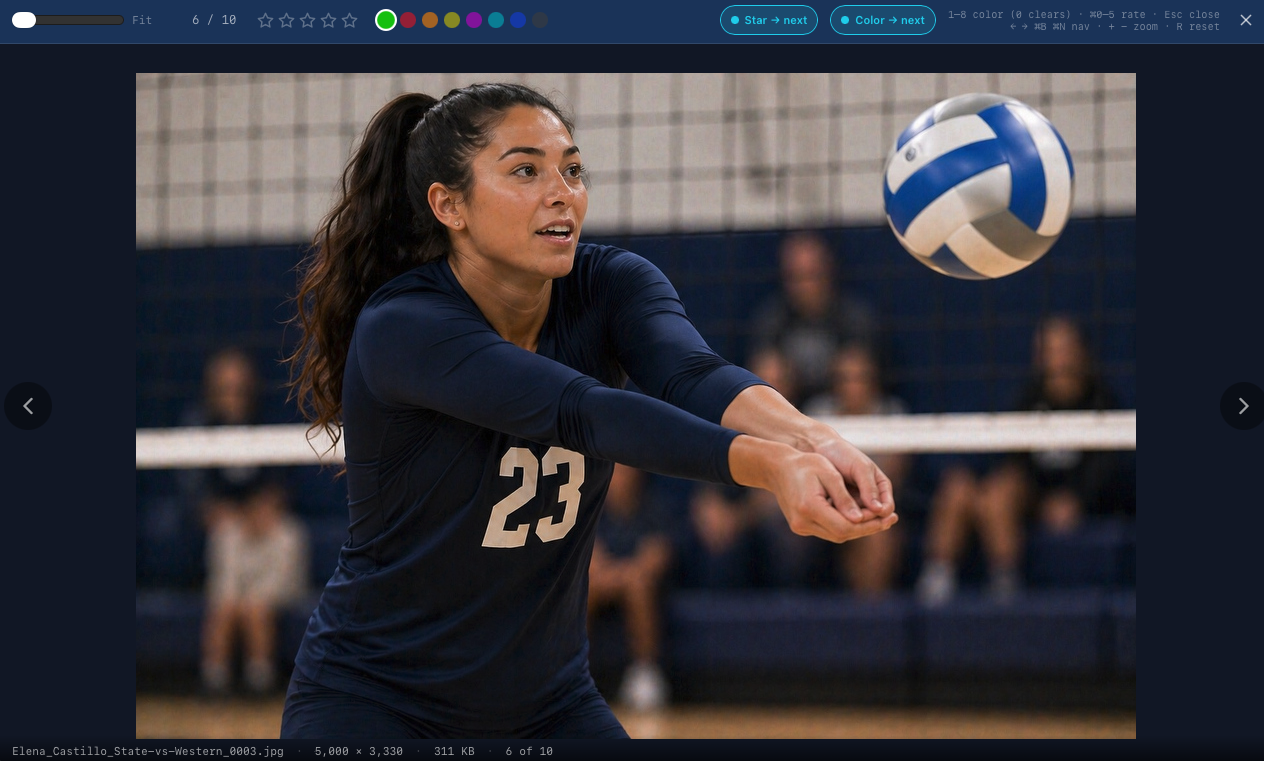
Double-click any photo (or click the preview eye icon) to open the lightbox, a full-screen overlay showing a high-resolution version of the image.
| Key | Action |
|---|---|
| ← / → | Previous / next photo |
| Esc | Close lightbox |
Status Bar
The bar along the bottom of the photo grid shows your current selection count, total file size of the selection, and keyboard hints for multi-select. If your account has limited gallery access, a notice appears here as well.
Selecting Photos

Selected photos show a teal checkmark in the upper-left corner and a highlighted border. The toolbar updates to show a Download button with the selection count.
| Action | How |
|---|---|
| Select one | Click a photo |
| Add / remove from selection | Cmd / Ctrl + click |
| Select a range | Click first photo, then Shift + click last photo |
| Select all visible | Click "Select All" in the toolbar |
| Clear selection | Click a selected photo again (if it's the only one), or click "Deselect" |
Downloading Photos
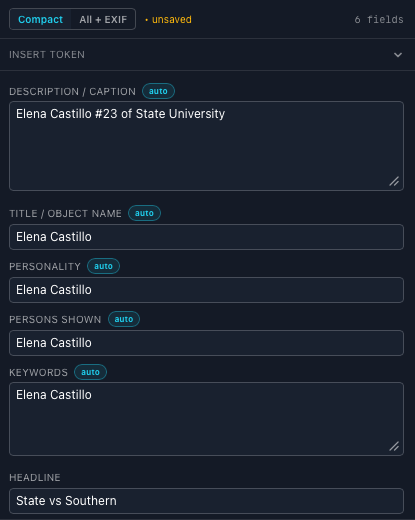
| Persons Shown | Elena Castillo | from MatchID, always |
| Caption / Description | Elena Castillo #23 of State University | from your template |
| Headline | State vs Southern | from your template |
| Keywords | Elena Castillo | from your template |
Starting a Download
There are two ways to download:
- •Select one or more photos, then click the Download button in the toolbar.
- •Hover over any photo in the grid and click the download icon that appears.
Either method opens the resolution picker where you choose the output size.
Resolution Options
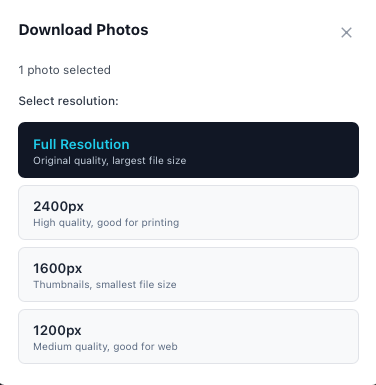
| Resolution | Best For |
|---|---|
| Full Resolution | Printing, archiving, original file quality and dimensions. |
| 2400px | High-quality web publishing or large prints. |
| 1600px | Large web use, slideshows, small prints. |
| 1200px | Social media, email, and standard web use. |
Multi-Gallery Downloads
When your selection spans photos from more than one gallery, the download modal notes this. Photos are packaged into a single ZIP regardless of how many galleries they belong to.
Metadata in Downloads
Downloaded photos include athlete names, jersey numbers, and tags embedded in each file's metadata. The names stay embedded in the file, any software that reads IPTC/XMP (GalleryID Desktop, Photo Mechanic, Lightroom, Capture One, or any cataloguing app) will see them without re-tagging.
| Field | Example Value |
|---|---|
| PersonInImage | Tyler Brooks, Marcus Rivera |
| Headline | Cal vs Stanford, Football |
| DateCreated | 2025-11-23 |
| Creator | John Smith Photography |
Troubleshooting
| Issue | What to Check |
|---|---|
| No photos appear | Make sure you have selected a person or gallery, or that your filters are not too narrow. Click "Clear" to reset. |
| A person is missing from the sidebar | The person list is built from facial recognition results. If a gallery is still processing, names appear after matching completes. |
| Gallery list says "No galleries available" | Your account may have limited access. Ask your organization admin to grant gallery permissions. |
| Full Resolution download is grayed out | Your account does not have permission to download originals. Contact your admin. |
| Photos load slowly | Thumbnails are generated at reduced resolution for speed. If you have a large library, try filtering to a specific gallery or date range. |