Users and access
Give athletes their own login
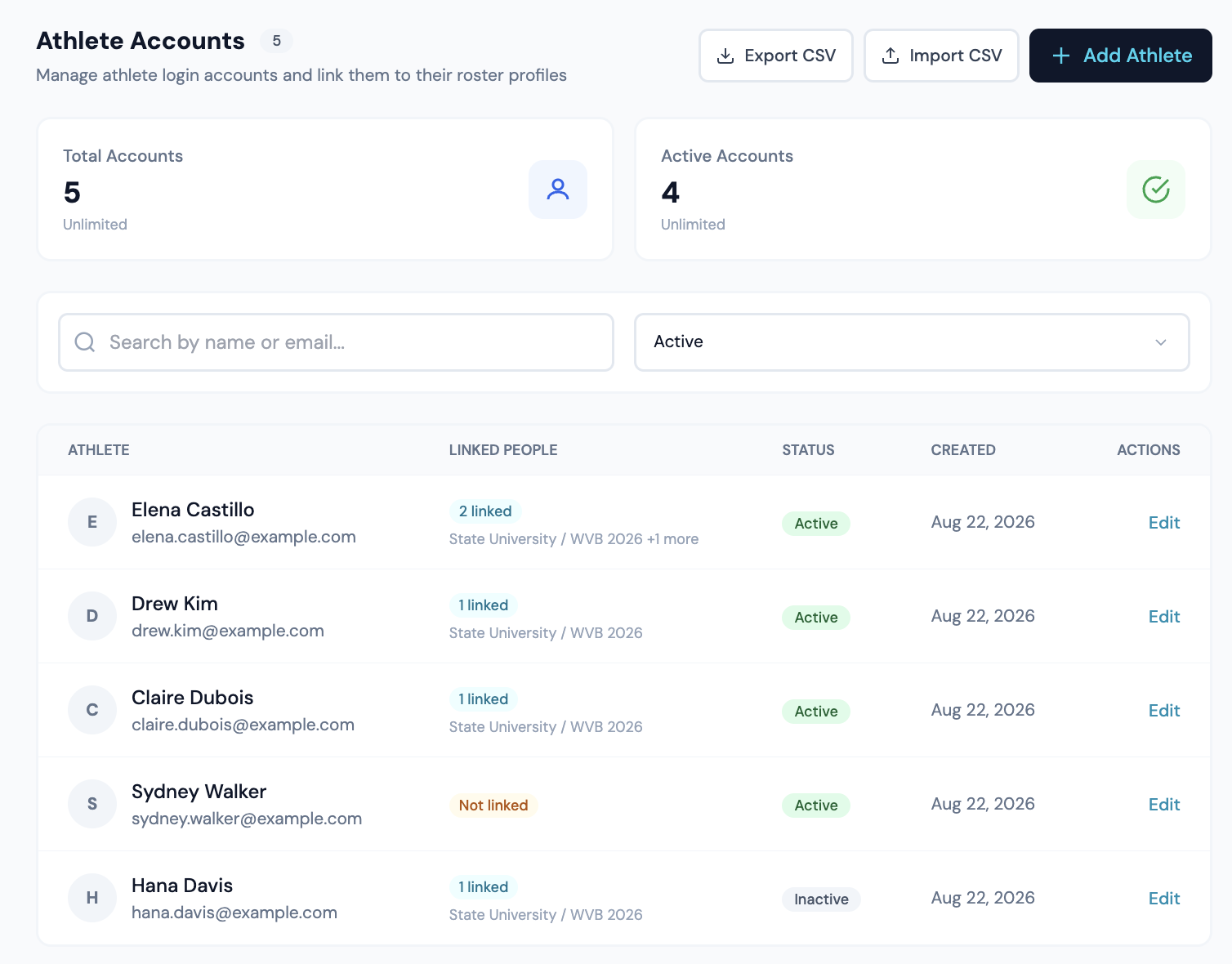
The login accounts athletes use to see their own photos, and the roster entries each account is linked to.
Linking each season is the point
When a linked person's name matches other roster rows, an "Also on your rosters" block appears offering those seasons. Matching is exact on the name and never fuzzy, and suggestions are always offered rather than applied, so you confirm each one.
Adding an athlete
- 1Click Add Athlete and enter an email. It is required.
- 2Optionally add a display name.
- 3Open Link to People and select their roster entries. You can search by name, by roster, or by jersey number.
- 4Accept any of the suggested other seasons.
- 5Leave Send Invite Email on, or turn it off, then click Create Account.
Importing and exporting
Import CSV shows a preview first, counting what would be created, updated, linked or skipped, and you choose whether to send invites when you apply it. The file needs a person_id column; email, phone and display_name are optional.
Counts and status
The counters at the top reflect the accounts currently loaded, so with the default Active filter they show active accounts rather than the whole organization. Deactivating removes access but preserves the account and its links, and it can be reactivated.
What the athlete actually sees
An athlete signs in at the same address you do and lands on My Galleries, which lists only the galleries they appear in. There are three places to go: My Galleries, All Photos across all of them, and Settings. The portal carries your logo and colors.
- •They see photos matched to their own linked people, and nothing else. A gallery reaches them only once it is published to athletes.
- •They can select photos and download them, one at a time or in a batch. The resolution is the one you set in Org Dashboard → Settings, and they get no picker.
- •Settings holds their contact details, a notification toggle, their password, and a read-only list of the roster people their account is linked to. That list is the fastest way to spot a missing season.
- •There is no favoriting, no cart and no buying in the athlete portal. Those belong to the store, which is a separate door.
They get two emails: an invitation when you create the account, and a note when they are tagged in a new gallery. The second is sent once per gallery, and only when both the portal and athlete notifications are on.