Tag from your roster with one press, or let MatchID do it. Included in all plans. Start your 14-day free trial.Get Started →
GalleryID
GalleryID CloudGalleryID DesktopMatchIDCaptionID
PhotographersTeamAthletic DepartmentsColleges & UniversitiesAthletic ConferencesOrganizations
HelpComparePricingBlogAbout
Book a DemoLog In
GalleryID CloudGalleryID Desktop
Help home

Start here

How GalleryID Cloud worksUse GalleryID Cloud on your phone

Galleries and photos

Find your way around the dashboardFind a gallery in the gallery listCreate galleries for a game and send upload linksSee the season on the Calendar and assign coverageOrganize galleries with folders

Search and collections

Search photos across every gallerySave photos to favorites and collections

Uploading and sharing

Upload a galleryShare a gallery with a linkCollect photos with an upload linkShare a whole folder with one link

MatchID

Drop headshots into MatchIDChoose which people MatchID looks forApprove and reject MatchID matchesPull a roster from your athletics site

Names and captions by hand

Tag by typing a name, number or codeBuild a CaptionID shortcode rosterGeneral Tags

Settings, naming and metadata

Choose which fields the names write toChange how files are named on downloadSet branding, domain and org-wide defaults

Users and access

Invite people and set what they can seeChoose a role and what it can doGrant folder access to a whole groupSwitch between organizationsGive athletes their own login

Selling

Set up the download store with StripeTrack sales and manage buyer downloadsWhat a buyer sees when they buy a photo

Billing and your account

Change your plan and check storage usageEarn credit by referring another photographerManage your Desktop license and devicesCheck a support ticket you opened

Integrations

Deliver photos over FTPSend photos on to PhotoShelter

More

TutorialsFAQContact support
Help›Galleries and photos›Find your way around the dashboard

Galleries and photos

Find your way around the dashboard
Org admin
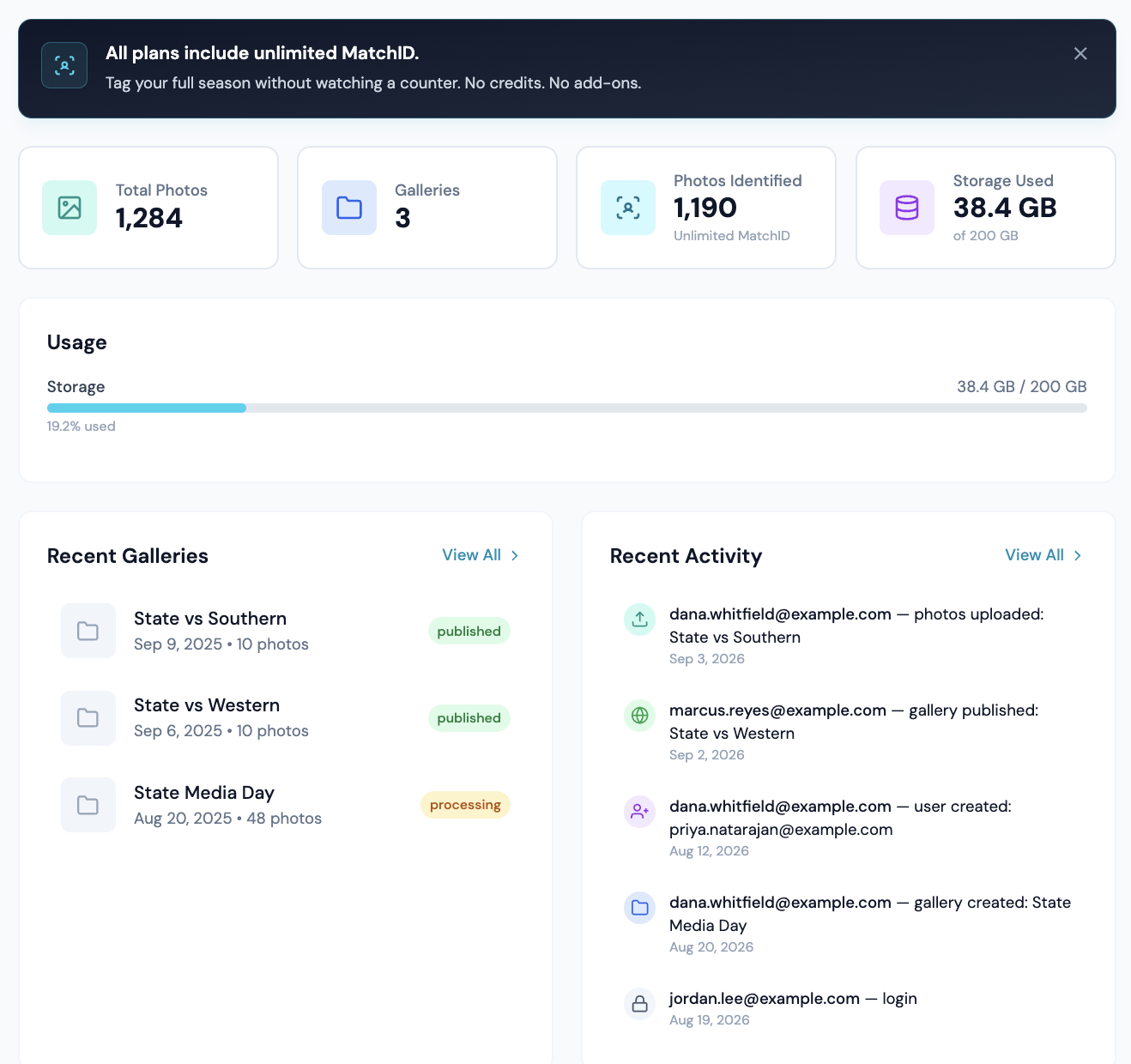
The Org Dashboard Overview
Overview: the getting-started card, the four counters, storage, recent galleries and activity.

Overview is where the dashboard opens. It answers two questions: how much is in the account, and what still needs setting up.

Three ways to get names on photos

The getting-started card shows three paths. They are separate, and only the first one is needed to upload and share.

1 · Upload and share

Create a gallery, drop photos in, send a share link. No roster, no headshots.

Uploading guide →

2 · Names from a roster

CaptionID tags athletes from a roster bound to the gallery. Works with no headshots. The name is written to the file's metadata on download.

Shortcode rosters →

3 · Names automatically (MatchID)

MatchID only matches faces against headshots you've indexed. Until then uploads process normally and no names are added on their own.

Index headshots →

What the four numbers count

CardWhat it actually counts
Total PhotosThe sum of each gallery’s photo counter, not a live count of photo records. Clicking it opens Photos.
GalleriesAn exact count of galleries in the organization. Clicking it opens the gallery browser.
MatchID ApprovedPhotos carrying an approved match, with a ring showing what share of your matchable photos that is. Clicking it opens the breakdown below. On a free plan the card reads MatchID and stays blank, because MatchID is a paid feature.
Storage UsedStorage against the plan limit, counted in decimal GB and TB so the number agrees with the plan name on your invoice.
MatchID Approved counts photos, not people. One photo with six athletes approved on it counts once.

The MatchID breakdown

Clicking the card opens five rows that add up to Total Photos. Each one is a different answer to "why doesn't this photo have a name on it".

RowWhat it means
ApprovedConfirmed in review, or cleared the confidence threshold your organization set. These names write to the file on download.
Pending reviewMatched below your auto-approve threshold, waiting on a yes or no.
Faces found, no matchA face was detected and nobody in your indexed roster came close. Usually an opposing player, a coach, or an athlete with no headshot indexed yet.
No face in frameStadium wides, ball details, an empty field. Nothing to match against.
MatchID hasn't runNo roster was bound to the gallery, processing was switched off at upload, or the file is a format MatchID cannot read.
Pending review here leaves out jersey-number matches. Those are reviewed under the Jersey filter instead, and counting them in both places would put two different numbers in front of you for the same work. The number you see here is the one that agrees with the amber badges on your galleries.

Why the percentage is not out of your whole library

The ring divides by matchable photos, which means approved plus pending plus faces-found-no-match. Photos with no face in them, and photos MatchID has not run on, are left out of both halves of that fraction.

It matters most on a large account that is still working through its back catalogue. An organization holding 170,000 photos where MatchID has run on 4,500 of them sees a percentage in the high fifties, which is how facial recognition is performing on the photos it has actually seen. Dividing by the whole library would have shown about 1.5%, which says nothing about accuracy and everything about how much is still queued.

The same reasoning keeps a ball detail out of the maths. A frame with no face in it is not a MatchID miss, so counting it as one would make a gallery of wides and details look like a failure.

The ring is a coverage figure, not an accuracy score. It tells you how far through the review you are, not how often MatchID is right. To judge accuracy, open Photo Review and look at what you are rejecting.

Storage warnings

  • •At 90% an amber banner appears and uploads still work.
  • •Uploads are turned away at about 105%. Existing galleries stay available and downloadable the whole time.
  • •A red banner with a countdown means the account is over the limit on a closed or downgraded plan. It names the date by which to upgrade or download.

Recent Activity

Five entries by default, and View All loads up to a hundred. Repeat entries of the same kind within two minutes are collapsed into one line, so deleting a gallery of 200 photos reads as one event rather than 200.

GalleryID

Athlete naming for sports photographers and athletic departments. GalleryID Desktop ingests, culls and captions on your own computer, and nothing is uploaded; SidelineID is Desktop on your phone at the game. GalleryID Cloud is the hosted archive you search by athlete name. The built-in Roster Library covers NCAA Division I, II and III and the major US pro leagues.

Find photos by athlete, not by filename.

iPhone and Android apps for both products →

Product

GalleryID DesktopGalleryID CloudMatchIDCaptionIDPhone appsFeaturesPricingCompare

Solutions

Sports PhotographersTeamAthletic DepartmentsColleges & UniversitiesAthletic ConferencesOrganizations

Company

Book a 30-Min DemoAboutContactPrivacyTermsDPA

Resources

HelpCloud Getting StartedDesktop Getting StartedCaptioning SoftwareRoster LibraryAfter Photo Mechanic PlusBlog
© 2026 GalleryID. All rights reserved.Built by working sports photographers, on the same deadline you are.macOS, Windows and the web.

Photo Mechanic and Photo Mechanic Plus are trademarks of Camera Bits, Inc. Lightroom, Photoshop and Adobe are trademarks of Adobe Inc. Capture One is a trademark of Capture One A/S. Sideline Captions, Caption Pro, PhotoShelter, SmugMug, Zenfolio, Pixieset, Pic-Time and all other product and company names referenced on this site are trademarks of their respective owners. GalleryID is not affiliated with, sponsored by, or endorsed by any of them. Those names are used here only to identify the products being described or compared, and any comparison reflects each vendor’s published documentation at the time of writing.