Settings, naming and metadata
Change how files are named on download
File Naming
Automatic filename patterns, single photo rename, and gallery-level controls.
Overview
GalleryID supports token-based automatic file renaming. Instead of keeping original camera filenames like DSC_0001.jpg, photos can be renamed using a customizable pattern built from tokens such as date, folder name, person names, photographer initials, and more.
Available Tokens
Tokens are placeholders that get replaced with real values when the rename runs. You can combine any tokens with separators to build your pattern.
| Token | What It Inserts | Example |
|---|---|---|
| Date | Photo capture date | 26-0404 |
| Time | Photo capture time | 131500 |
| Sequence # | Auto-incrementing number | 001, 002, 003 |
| Letter Seq | Auto-incrementing letter | A, B, C |
| Gallery | Gallery title | Spring_Football |
| Folder | Parent folder name | College |
| Subfolder | Child folder name | BVOL |
| Persons | Recognized people in the photo | Grace_Hong |
| Last Name | Surname only | Hong |
| First Name | Given name only | Grace |
| Event | Event name from the gallery | Senior_Night |
| Title | Photo title | Match_Point |
| Keywords | Keywords on the photo | Volleyball |
| Original Filename | The name as it came off the card | DSC_4821 |
| Photographer | Photographer name from EXIF | Al_Sermeno |
| Initials | Photographer initials (from org map) | ADS |
| Custom | Custom label set per gallery | Game1 |
| Org Token | Organization-wide identifier | CAL |
YYYY-MM-DD vs YY-MMDD). Separators (-, _, or space) can be placed between any tokens.Setting Up a Pattern (Org Admin)
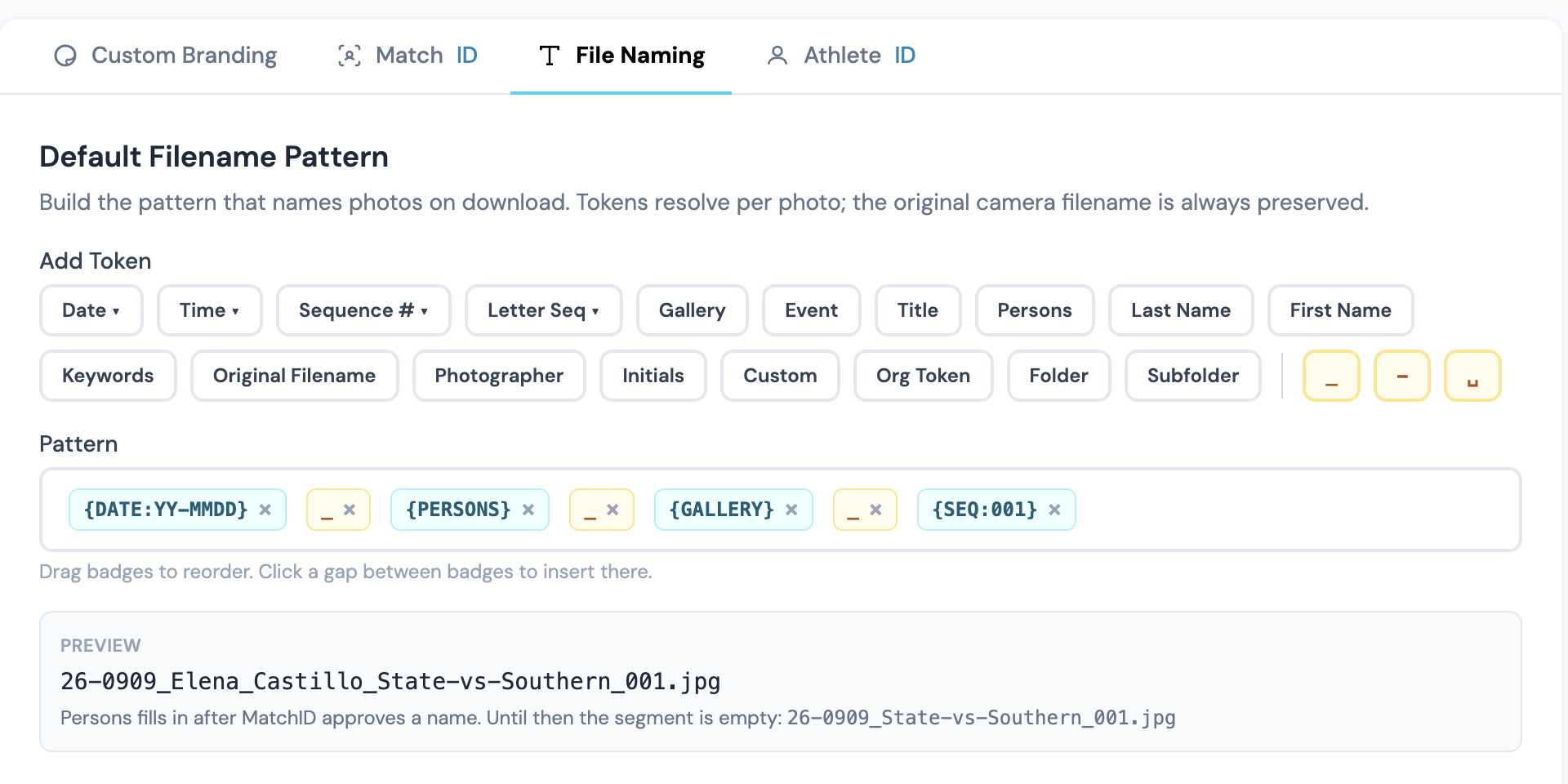
Organization admins configure the default filename pattern from the Org Dashboard.
- 1
Open Org Dashboard → Gallery Settings → File Naming
Navigate to Org Dashboard, open Settings, then click the File Naming tab at the top. - 2
Build your pattern
Click tokens or drag the badges to assemble your pattern. Click between badges to set the insert position. The pattern saves the moment you add, remove, or reorder a token. - 3
Set the space replacement and toggles
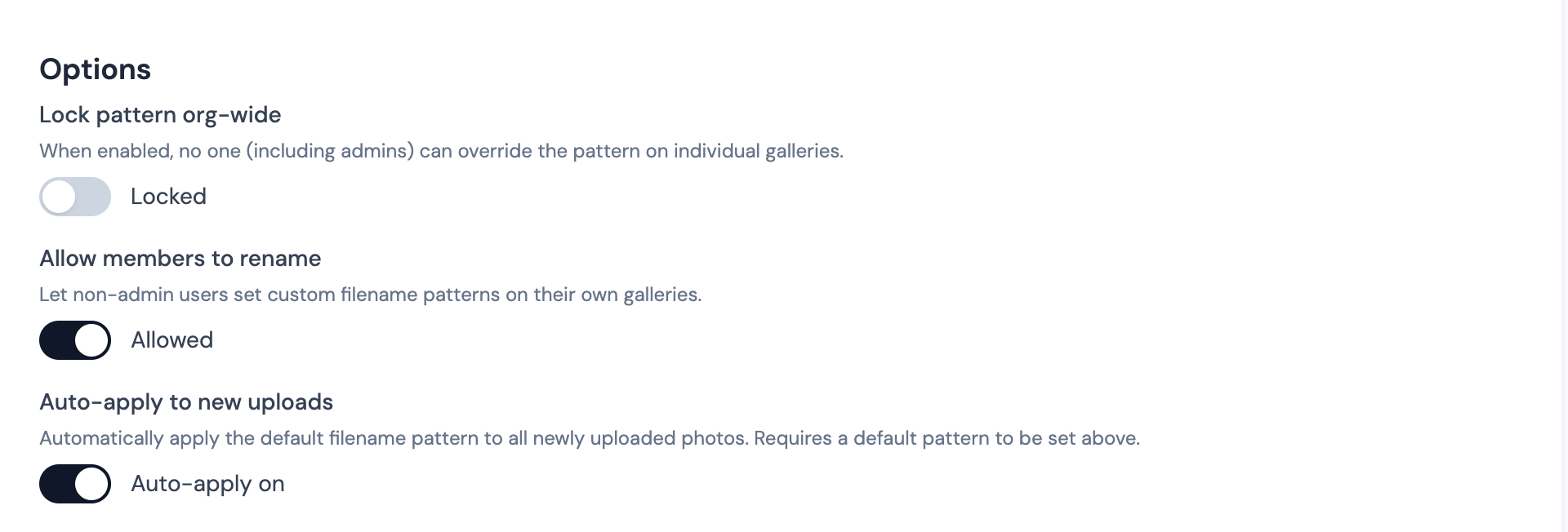
Pick how spaces in token values are handled (underscore, hyphen, or keep spaces). Toggle "Lock pattern org-wide", "Allow members to rename", and "Auto-apply to new uploads" as needed. All three commit on toggle. - 4
Enter your Organization Token
The Organization Token is a text input. Type your token (e.g. "CAL"), then click Save below the field. Click Cancel to discard. - 5
Map photographer initials
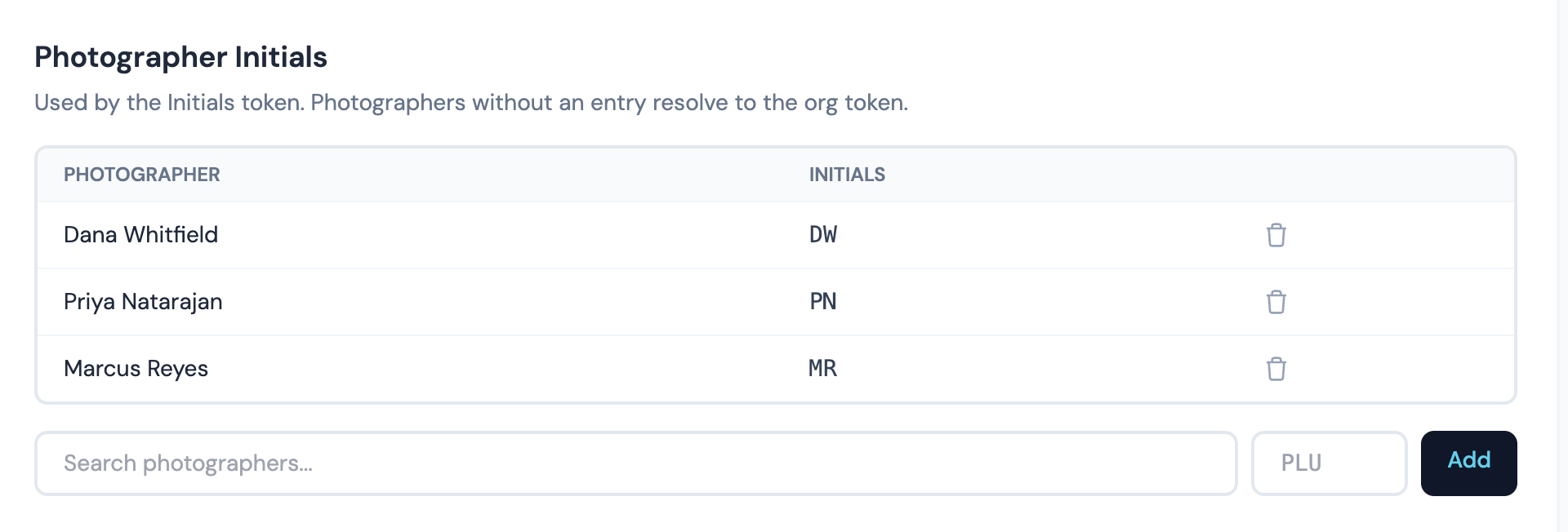
Use "Add from team" to pull a user from your org, or "Add external photographer" for outside contributors. Each row's initials cell is inline-edit: type new initials and click out (or press Enter) to save. Press Escape to discard.
Admin Options
- •Space replacement: controls how spaces inside token values are handled (underscore, hyphen, or keep spaces)
- •Org Token value: a custom identifier that applies to all photos org-wide (e.g., "CAL")
- •Photographer initials map: assign custom initials per photographer name (e.g., "Al Sermeno" → "ADS")
- •Lock filename pattern: prevents non-admin users from changing the pattern
- •Allow user rename: lets non-admin users apply rename patterns to their galleries
Auto-Rename Behavior
When "Auto-apply to new uploads" is enabled, renaming happens in two stages:
- 1
At upload time
Photos are immediately renamed with all available data, date, folder, gallery name, photographer, etc. Tokens like Persons will be empty at this stage since facial recognition hasn't run yet. - 2
After facial recognition completes
The system automatically re-applies the pattern with the now-identified person names filled in. This happens automatically, no action needed.
DATE:YY-MMDD-FOLDER-PERSONS-PHOTOG_INITIALS:At upload:
26-0404-College-ADS.jpgAfter face rec:
26-0404-College-Grace_Hong-ADS.jpgGallery-Level Controls
Each gallery has a File Naming tab in its settings (click the gear icon inside any gallery). From here you can:
- •Override the pattern: use a different filename pattern for just this gallery. Click "Override for this gallery" to start with the org pattern and customize it.
- •Set a Custom Label: if your pattern includes the Custom token, you can set a per-gallery value (e.g., "Game1", "Headshots", "Action Shots").
- •Apply Pattern to All Photos: manually trigger a bulk rename on all photos in the gallery using the current pattern.
- •Reset to Original Filenames: remove all display names and restore original camera filenames.
Single Photo Rename
Individual photos can be renamed directly from the gallery browser using the right-click context menu.
- 1
Right-click a photo
Inside any gallery, right-click on the photo you want to rename. - 2
Select "Rename"
Choose Rename from the context menu. - 3
Type a new name
The rename dialog shows the current filename. Type your new name, the file extension (e.g., .jpg) is preserved automatically. - 4
Check for duplicates
A live duplicate check runs as you type. If another photo in the same gallery already has that name, you'll see a red warning and the Rename button will be disabled. - 5
Save
Click Rename or press Enter to save. The new name takes effect immediately everywhere.
Where Renamed Names Appear
The renamed display name shows everywhere throughout GalleryID:
- •Gallery browser, grid view, list view, and lightbox
- •Photo detail and edit views
- •Public gallery pages and shared collection links
- •Buyer-facing views, favorites, cart, and purchases
- •Downloaded files, single downloads and ZIP exports
- •Purchase confirmation emails
Troubleshooting
Person names are missing from renamed files
Person names come from facial recognition, which runs after the upload completes. If auto-apply is enabled, the system will automatically re-rename after facial recognition finishes. If auto-apply is off, go to Gallery Settings → File Naming and click "Apply Pattern to All Photos" after facial recognition completes.
Folder token is empty
The Folder token pulls the name of the folder your gallery is inside. If a gallery is at the root level (not inside any folder), this token will be empty. Move the gallery into a folder and re-apply the pattern.
Cannot rename, pattern is locked
If you see "Pattern locked by organization admin," the org admin has locked the filename pattern. Contact your admin to change the pattern or unlock it. You can still rename individual photos using the right-click menu.
Related